
Microsoft Word isn’t just a word processor. It is the default engine behind most professional and academic documents on the planet. Developed by Microsoft, it lives inside the Microsoft 365 suite—formerly known as Office—and has cemented its status as the go-to tool for everything from a quick email draft to a 300-page thesis.
The app handles text, images, tables, and charts in one seamless ecosystem. Its strength lies in advanced styling, automatic spell-check, and deep integration with other Microsoft apps. You can collaborate in real-time via OneDrive cloud sync. Shared editing, annotations, and version history make group projects less chaotic. It also auto-generates tables of contents and bibliographies.
Recent updates have modernized the interface. The ribbon is cleaner. AI tools assist with writing and translation. It works across PC, Mac, mobile, and tablet.
Downloading and Installing on Desktop Systems
Getting Word onto your computer depends on your OS and subscription. On Windows 10 or 11, you typically need a Microsoft 365 subscription. You buy it through the official Microsoft site. After paying and logging in, the installation is guided. It integrates into your suite. You are ready to write immediately.
Mac users follow a similar path. The downloadable version is specific to Apple’s environment. It ensures full compatibility and an optimized experience for macOS users.
Mobile and Web Access
Word is available on mobile devices. Android users can grab it from the Google Play Store. iPhone and iPad users find it in the App Store. The mobile app is touch-optimized. It retains most desktop features. You can open, edit, and share documents anywhere with an internet connection. It is perfect for quick corrections or reading on the train.
If you do not want to install software, use Word Online. Access it directly through a browser at office.com. It is free if you have a Microsoft account. This option suits students or those with light usage needs.
The Linux Question
What about Linux? Microsoft does not offer a native desktop version for Linux. However, alternatives exist. You can use Word Online via a browser. You can also use virtualization software to run Windows apps. This allows flexibility. Start a document on your PC. Continue it on your phone. The workflow remains intact.
“Word adapts to new usage patterns, ensuring continuity across all devices.”
The ecosystem is closed but powerful. It keeps your documents consistent. Whether you are on a budget or need enterprise-grade tools, there is a way to access it.
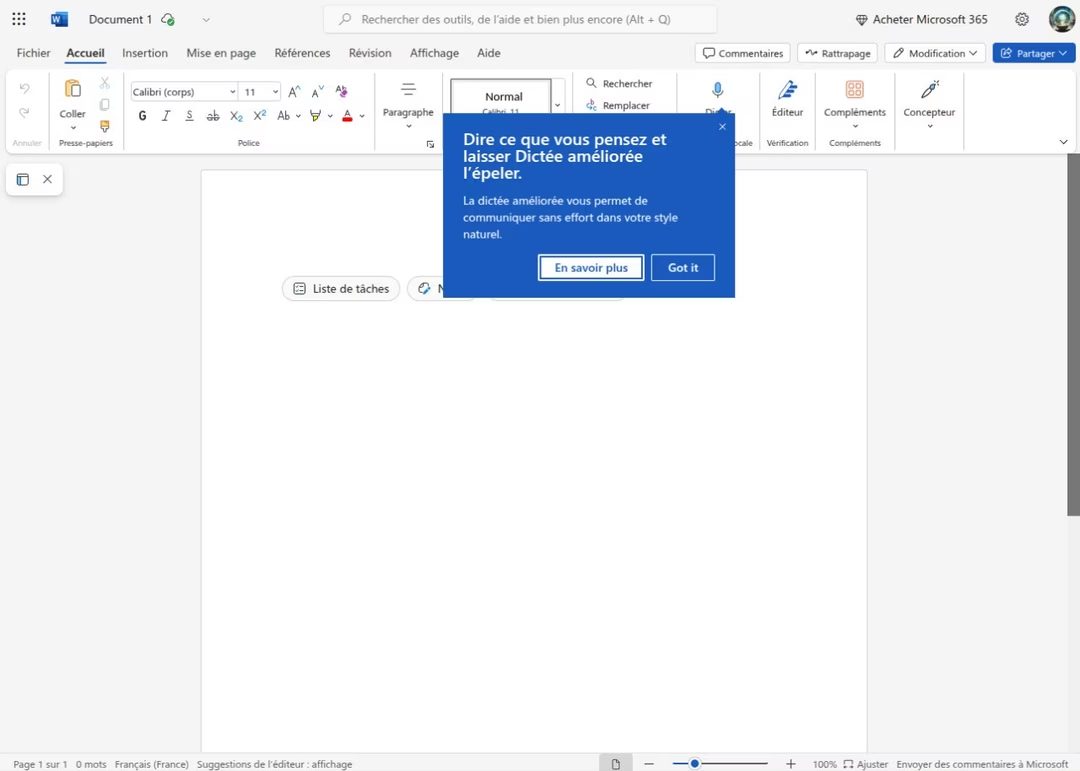
Naviguer entre abonnements et licences perpétuelles
Si you are looking for how to choose the right Microsoft Word license, the landscape has shifted heavily toward subscription models. Microsoft primarily distributes Word through Microsoft 365. This isn’t just about getting the app; it’s an entry ticket to the entire Office suite—Excel, PowerPoint, Outlook, and more. You can buy this for a single user, a family, or a business enterprise. The price tag usually bundles cloud storage, technical support, and those automatic updates that keep you secure. Why pay monthly? Because the software evolves with you. The constant renewal cycle ensures you never fall behind on security patches or new features.
But what if you hate subscriptions?
There is an alternative: the perpetual “Office” license. You pay once. You own that specific version forever. The catch? It is frozen in time. No major feature updates. No security improvements that come with new releases. You get a static tool in a dynamic world.
Getting started with Word Online for free
Let’s address the elephant in the room: how to get a free version of Word. Microsoft doesn’t offer a full-featured desktop app for free anymore. But they do have Word Online. It is legal. It is accessible. It runs in your browser.
If you have an internet connection, you can create and edit documents with most basic tools. It is not the powerhouse desktop version, but for drafting an email, writing a blog post, or editing a resume, it holds up. It is a smart move for students or anyone wanting to test the waters before spending money.
For educators and students, there is a dedicated “Education” subscription. Depending on your school or university partnership, this can be free or heavily discounted. Check with your institution. They might already be paying for it.
Compatibility and file formats
You need to know why .docx is the standard. Microsoft Word uses the .docx format, which is universally recognized. Other text editors support it. This means you can share files without losing formatting or data. It is a bridge between different software ecosystems.
When you install Word on a new device, you can sync your old files to the cloud. Access them anywhere. Word also handles retrocompatibility. It opens old .doc files and supports older software versions. This flexibility is crucial for archiving or recovering legacy documents without starting from scratch.
Advanced features and automation
Word has evolved beyond simple text entry. For power users, it is an automation engine. You can use mail merge for bulk emails. You can record macros to automate repetitive tasks. Dynamic fields update data automatically. Interactive forms collect input directly within the document.
Want to extend its capabilities? The Microsoft Store offers add-ins. Need translation assistance? There is an add-in. Statistical analysis? Done. Document management? Covered. This versatility is why Word dominates enterprises, government agencies, and academia. It adapts to your workflow, not the other way around.
Building skills and certifications
Proficiency in Word is a marketable skill. Employers value it. Many jobs require it. If you want to prove your expertise, look into certification. Microsoft offers the MOS (Microsoft Office Specialist) exam. Passing it validates your skills. It opens doors.
Training is available everywhere. Accredited organizations, online platforms, and Microsoft itself provide courses. They range from beginner basics to expert-level modules. The community support is also vast. If you hit a wall, someone else has likely solved the problem.
Managing versions and updates
Sometimes you need an older version of Word. Maybe your current IT infrastructure relies on it. Or perhaps a specific legacy system requires it. Microsoft allows this through partners or your Microsoft 365 account, provided you respect license terms. You can retrieve installers for previous editions.
However, there is a strong recommendation: stick to the latest version. Older versions lack critical security patches. They miss out on new features. They may not play well with modern digital ecosystems. Keeping Word updated is not optional; it is essential. You can launch updates manually within the app to get the latest improvements quickly.
The bottom line
Word remains the reference point for word processing. Its functional depth and reliability are unmatched. It downloads on most platforms. It fits various configurations. It connects to online services. The experience is consistent, whether you are a professional drafting a contract or a student writing a thesis. It works.
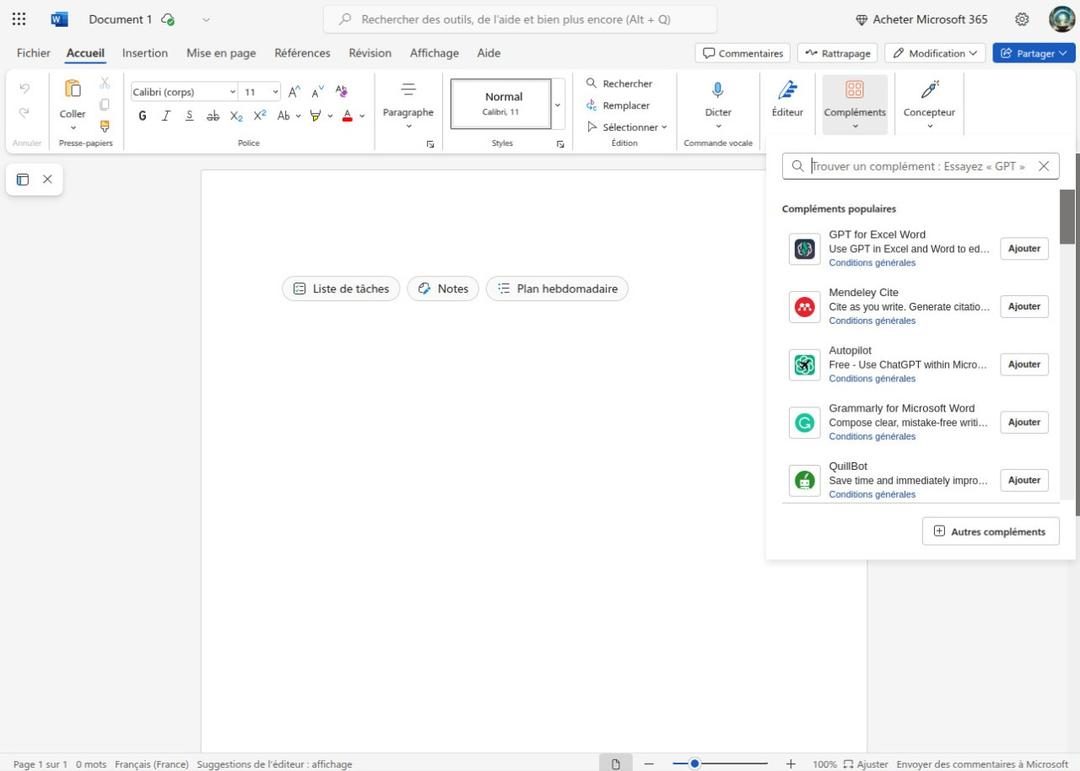
Microsoft Word system requirements and compatibility guide
If you are trying to figure out which version of Microsoft Word fits your setup, the technical specs matter more than you might think. The difference between the desktop app, the mobile version, and Word Online isn’t just about screen size. It is about what you can actually do with the software. Knowing the requirements upfront saves you from awkward moments where a document won’t load or features are greyed out.
Microsoft Word is not a standalone product anymore in most contexts. It is part of the Microsoft 365 ecosystem. This changes how you install it, how you pay for it, and how it talks to the cloud.
The core specifications that define Word
Let’s look at the hard data. This is the baseline for installation.
Name: Microsoft Word
Developer: Microsoft Corporation
Category: Productivity / Word Processor
Licensing models vary significantly.
If you want the full desktop experience on Windows or macOS, you generally need a Microsoft 365 subscription. This covers individual, family, business, and education tiers. There is a catch, though. The web version, Word Online, is free. It works in most modern browsers. But the free version strips away advanced features. It is functional for drafting, but not for heavy formatting or complex macros.
Supported operating systems are broad.
Microsoft has cast a wide net. You can run Word on:
– Windows 10 and Windows 11
– macOS (both older Intel chips and newer Apple Silicon)
– Android devices
– iOS and iPadOS devices
– Any compatible web browser
Architecture matters for performance.
On Windows, the app supports both 32-bit and 64-bit systems. The 64-bit version handles large documents better. On Mac, it runs natively on Apple Silicon (ARM architecture) as well as Intel. If you are using an iPad with an M-series chip, it uses the optimized version. This ensures smoother scrolling and faster rendering.
Language and localization.
The interface supports multiple languages. You can install proofing packs for spell check and grammar in various languages. This is useful for multilingual teams or students studying abroad.
File formats and interoperability
Word is built around its native format: .docx (Office Open XML). This has been the standard for over a decade. However, legacy .doc files are still supported for compatibility.
Importing and exporting is flexible.
You can open and edit:
– .odt (OpenDocument Text, common in Linux/OpenOffice environments)
– .rtf (Rich Text Format)
– .txt (Plain text)
You can export to:
– .pdf (for sharing final versions)
– Common image formats like .jpg, .png, .gif, .tiff, and .bmp for embedding graphics.
Note that while Word opens ODT files, the formatting might shift. Complex layouts in OpenOffice or LibreOffice documents do not always translate perfectly into Word. Microsoft acknowledges this limitation. If you are collaborating with users who rely heavily on ODT, expect some manual tweaking.
Collaboration and cloud integration
This is where Word diverges from older word processors. Word Online and the desktop app rely on OneDrive and SharePoint for real-time collaboration.
Key features include:
– Co-authoring: Multiple people can edit the same document simultaneously.
– Comments and track changes: Essential for editorial workflows.
– Version history: You can restore previous versions of a file stored in the cloud.
Without an internet connection, these features are limited. You can still work offline, but syncing and collaborative edits require a connection. Internet is also mandatory for initial activation and periodic updates.
Security and accessibility
Security is baked into the Microsoft 365 environment.
– Password protection: You can encrypt documents.
– Microsoft Purview: Enterprise users benefit from Data Loss Prevention (DLP) and document labeling policies.
Accessibility is a priority.
Word supports screen readers and keyboard navigation. It includes dictation tools and an accessibility checker to help ensure documents are readable for everyone. This is not just a compliance checkbox; it makes the software usable for a wider range of people.
Extensions and add-ins
Power users can extend Word’s capabilities.
– VBA Macros: Automate repetitive tasks. However, macros can pose security risks. Microsoft blocks macros from network locations by default. You must enable them manually.
– Office Add-ins: Third-party plugins can add features like citation managers or design tools.
The user experience: Pros and cons
Word is the industry standard for a reason. It is comprehensive. The ribbon interface has remained consistent across versions, which helps with muscle memory. Styles, templates, and automatic table of contents generation streamline report writing.
Where it shines:
– Structured document creation (reports, academic papers, administrative docs).
– Real-time collaboration via OneDrive/SharePoint.
– Integration with the rest of the Microsoft 365 suite (Excel, PowerPoint, Outlook).
Where it falls short:
– Cost: The subscription model adds up. For individuals who only need to write occasionally, it may feel expensive compared to free alternatives.
– Web limitations: Word Online lacks advanced features like mail merge or complex macro support.
– Performance: Very large documents with many images can slow down older machines.
– Complex formatting: For desktop publishing, dedicated software like InDesign is better. Word can handle simple layouts, but it is not a design tool.
How to download Word safely
Security is a concern when downloading software. Always use official channels.
– Microsoft 365 website: For subscriptions.
– Official app stores: Microsoft Store, Mac App Store, Google Play, Apple App Store.
Avoid third-party download sites. They may bundle malware or outdated versions. Once installed, sign in with your Microsoft account to sync files and access cloud features.
Final thoughts
Word remains a robust tool for everyday writing and professional collaboration. It balances feature depth with cross-platform availability. However, it is not perfect. The subscription cost is a barrier for some. The web version is limited. And compatibility with non-Microsoft formats is improving but not flawless.
For most users, the desktop app via Microsoft 365 offers the best experience. Occasional users might stick to Word Online. Heavy editors might need more specialized tools. The choice depends on your specific workflow.
One thing is clear: if you are already in the Microsoft ecosystem, Word fits naturally. If you are starting fresh, weigh the subscription cost against the features you actually need. The specs above should help you decide which version to install. The rest is up to how you use it.
The Hardware That Actually Moves the Needle
Let’s be honest. Promises of infinite scaling mean nothing if the backend collapses under the weight of its own ambition. We’ve talked about the code. We’ve talked about the algorithms. Now we’re looking at the iron. The physical stuff. Because no matter how elegant the logic, it still has to run on silicon.
The shift isn’t just about bigger servers. It’s about specialization.
Why General Purpose CPUs Are Losing the Fight
For decades, the CPU reigned supreme. Central Processing Units. They’re good at everything. Terrible at being the best at one thing. This worked when the workload was simple. Text processing. Basic calculations. Email.
Now? We’re feeding them terabytes of unstructured data. Real-time video streams. Complex neural network training. The CPU chokes. It tries to handle too many threads at once. Context switching becomes a bottleneck. Latency spikes.
Enter the GPU. Graphics Processing Unit. Originally built to render polygons for video games. Now they’re the workhorses of AI. Why? Because they have thousands of small cores. Not a few big ones. They process massive parallel tasks. Matrix multiplications. The bread and butter of machine learning.
But GPUs aren’t the only option anymore.
The Rise of Specialized Accelerators
ASICs. Application-Specific Integrated Circuits. These are chips designed for one job. Train this specific model. Inference at this scale. They’re faster. More energy-efficient. Less expensive per operation than a general-purpose GPU. But they’re rigid. If the algorithm changes, the chip is obsolete.
Then there are TPUs. Tensor Processing Units. Google’s answer to the AI boom. Built from the ground up for tensor operations. They don’t care about running Windows. They don’t care about rendering a desktop interface. They care about pushing numbers through a neural network as fast as physically possible.
Which one do you need?
It depends on your bottleneck.
- Training large models? You likely need clusters of GPUs or TPUs. The parallelism is non-negotiable.
- Running inference at the edge? An FPGA or a specialized ASIC might make more sense. Lower power. Lower latency.
- Developing new architectures? Stick with GPUs. Flexibility wins.
The Cooling Problem No One Talks About
You can buy the fastest chip in the world. It won’t matter if it melts.
Data centers are hot. Literally. A single high-density rack can generate as much heat as a small town. Air cooling is hitting its physical limits. Liquid cooling is no longer a niche option. It’s becoming standard for high-performance computing.
Direct-to-chip liquid cooling. Cold plates. Immersion tanks. These methods move heat away from the silicon faster than air ever could. Why does this matter to you? Efficiency. Energy costs. Carbon footprint. And reliability. A server that overheats goes down. Downtime costs money.
Memory Wall: Where Data Gets Stuck
Processing power is increasing. Memory bandwidth isn’t keeping up. This is the “memory wall.” You have a fast CPU. But it’s waiting for data to arrive from RAM. The wait time kills performance.
HBM. High Bandwidth Memory. Stacked vertically. Connected directly to the processor via Through-Silicon V