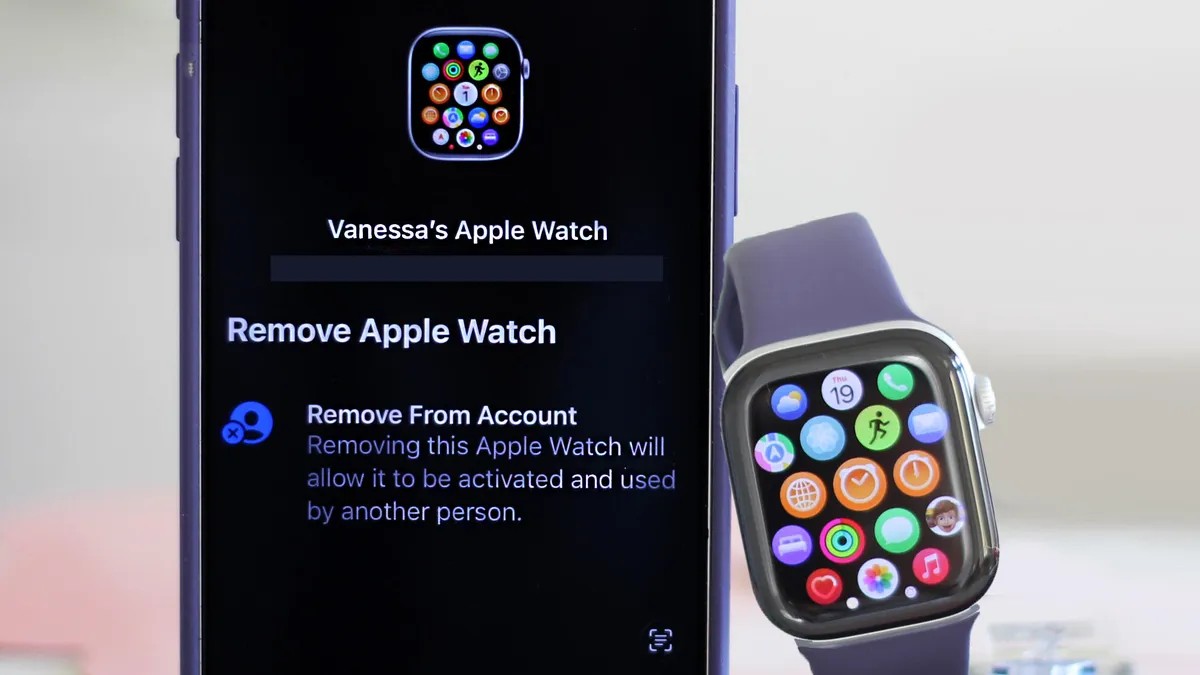
Switching to a new Apple Watch should be straightforward, but properly unpairing your old device is crucial for a smooth transition. Failing to do so correctly can lock the watch to your account, creating headaches for both you and the next owner. This guide provides clear instructions on how to unpair your old watch and set up your new one, ensuring a seamless experience.
Why Proper Unpairing Matters
Before diving into the steps, understand why this process is important. Leaving an Apple Watch locked to your account prevents the next user from activating it without your Apple ID credentials. This is a common issue, especially when selling or gifting a used device. Moreover, failing to remove cellular plans can lead to continued billing.
Unpairing Your Old Apple Watch: Three Methods
There are three ways to unpair your Apple Watch. Method 1 is the recommended approach, while Methods 2 and 3 are useful in specific scenarios. All methods require at least a 50% battery charge on the watch.
Method 1: The Standard Unpairing Process (Watch and iPhone Required)
This method is best for transferring ownership.
- Open the Watch app on your iPhone.
- Tap All Watches at the top.
- Select your old watch and tap the i icon.
- Scroll down and tap Unpair Apple Watch.
- If you have a cellular model, choose whether to keep or remove the plan. Remove the plan unless you’re immediately reusing it.
- Confirm by tapping Unpair again and entering your Apple ID password.
The watch will reboot and display the Apple logo when complete. Verify unpairing by checking the Find My app on your iPhone; the watch should no longer appear in the device list.
Method 2: Remote Unpairing via iCloud (No Watch Required)
Use this if you’ve already handed off the watch or if it’s lost/stolen.
- Log in to iCloud on a desktop or via the Find My app on your phone.
- Locate your Apple Watch in the device list.
- Click on it, scroll down, and press Erase.
- Confirm by entering your Apple ID password.
While this prevents tracking, you can leave a contact number for potential finders.
Method 3: Factory Reset on the Watch (Last Resort)
Use only if your paired iPhone is unavailable. This method does not remove Activation Lock.
- On your watch, go to Settings > General > Reset.
- Tap Erase All Content and Settings.
This wipes the watch but leaves it locked to your account unless you use Method 2 afterward.
Setting Up Your New Apple Watch
Once the old watch is unpaired, setting up the new one is simple.
- Press and hold the side button to turn on your new watch.
- The pairing screen should automatically appear on your iPhone. Tap Continue.
- Choose whether you’re setting it up for yourself or a family member.
- If pairing doesn’t start automatically, open the Watch app on your iPhone and tap Start Pairing.
Hold your iPhone over the watch, positioning it within the camera viewfinder. The devices will pair automatically. Follow the prompts to set up the watch, including restoring a backup from your previous device. If the camera fails, manually enter the six-digit code from the watch’s Info screen on your iPhone.
Activating Cellular Service
Finally, activate cellular service if your model supports it. This can be done during setup or later through your carrier. Otherwise, you can use Wi-Fi only.
In conclusion, properly unpairing your old Apple Watch is critical for a smooth transition and prevents account lockouts. By following these clear steps, you can ensure a seamless setup experience with your new device.