Upgrading to a new iPhone – whether it’s the iPhone 17, 17 Pro, or the upcoming iPhone Air – is an exciting experience. However, transferring data from your old device can be a headache. Fortunately, Apple provides four straightforward methods to ensure a smooth transition, even if you’re switching from Android.
iCloud Restore: The Simplest Approach
The easiest way to set up your new iPhone is by restoring from an iCloud backup. During setup, select “Restore from iCloud Backup,” sign in with your Apple Account, and choose the most recent backup. If the backup is old, create a new one in Settings > iCloud Backup > Back Up Now. Your phone will restore settings and preferences within 15 minutes, then download apps in the background. Remember to re-sign into any accounts afterward.
Why this matters: iCloud backups are convenient, but rely on Apple’s cloud storage. If you prefer local control or have a slow connection, other methods are better.
Direct iPhone Transfer: The Fastest Option
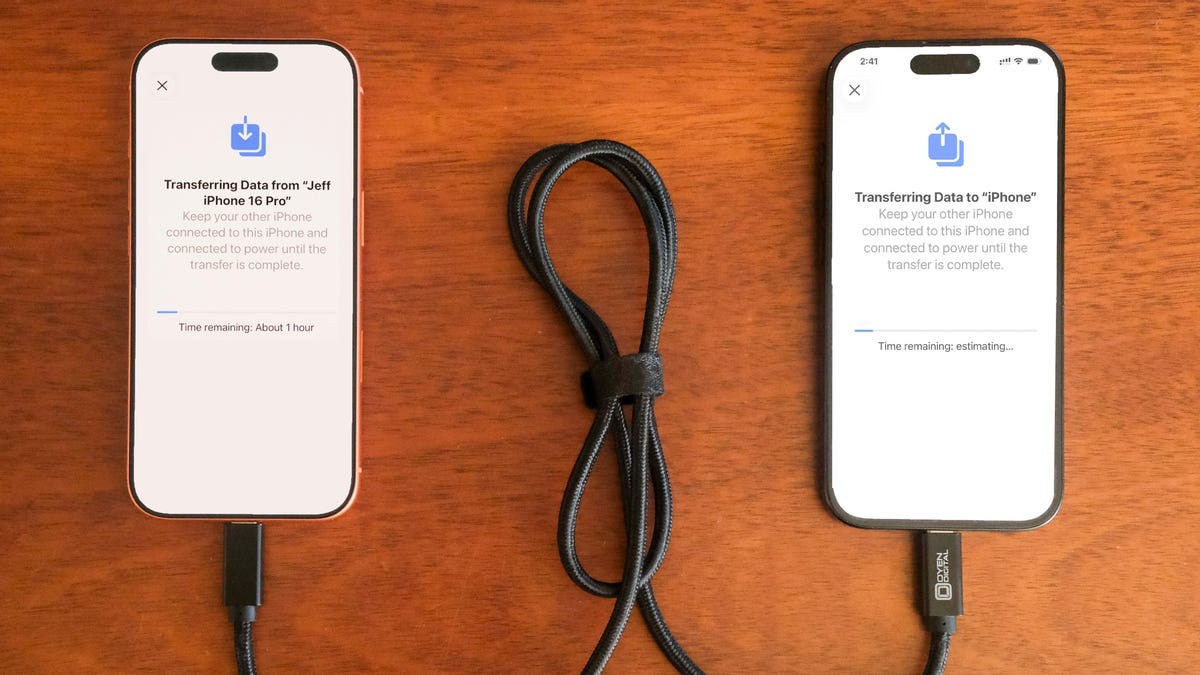
For a quick transfer, use Apple’s direct iPhone-to-iPhone method (wireless or wired). If you don’t have a recent iCloud backup, this is ideal. A fast-rated cable ensures speed; an adapter may be needed for older iPhones. Wired transfers are often fastest. Wireless transfers require both phones to be plugged in and connected to Wi-Fi, and can take over an hour depending on data size.
Why this matters: Direct transfer bypasses cloud dependency, but requires time and a stable connection.
Mac or PC Restore: The Comprehensive Method
For a more thorough transfer, use a Mac or PC to restore from an encrypted backup. This method transfers all data, including app logins, saving you time.
On a Mac, use Finder: back up your old iPhone, checking the “Encrypt backup” box and entering a password. On a PC, use iTunes or the Apple Devices app. Connect your new iPhone, trust the connection, and select the encrypted backup. Enter the password to begin.
Why this matters: Encrypted backups offer more security, but require password management. This method ensures a complete, seamless transition.
Move to iOS: The Android Solution
Switching from Android? Apple’s “Move to iOS” app simplifies the process. It transfers contacts, messages, photos, and more. The app has been updated for faster Wi-Fi transfer (up to 5GHz) or use a USB-C cable for speed. Note that locally stored music or PDFs won’t transfer.
Why this matters: Apple is actively making it easier to switch from Android. The “Move to iOS” app streamlines the process, though it doesn’t cover all data types.
No matter which method you choose, upgrading to a new iPhone should be a seamless experience. By following these steps, you can quickly enjoy your new device without data transfer headaches.